 Engadget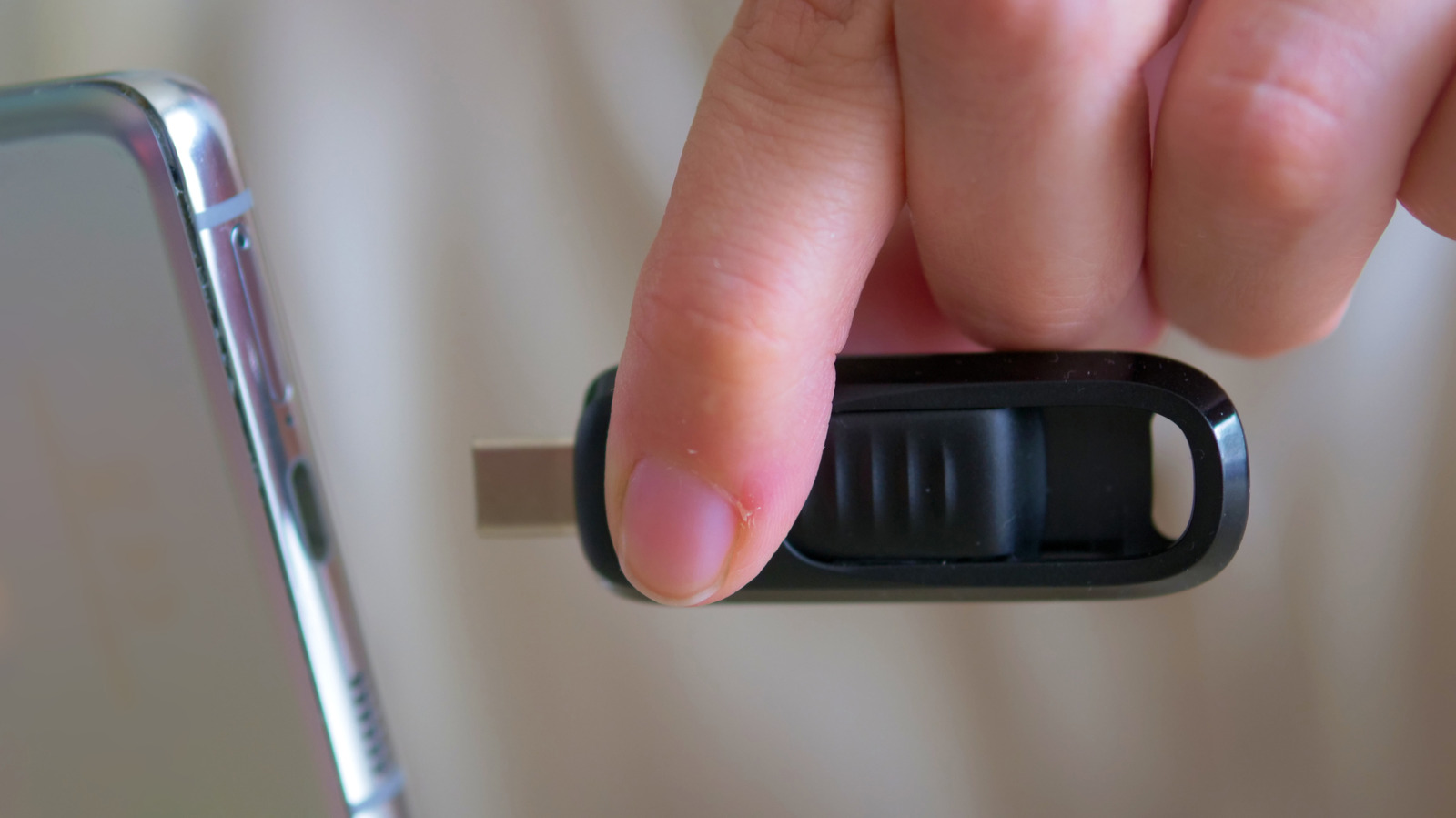
USB-C is more convenient for newer devices, but the connector type doesn’t make a flash drive faster.
USB-C beats USB-An on convenience. The smaller, reversible port is used in most modern laptops, tablets and (perhaps most for this discussion) smartphones. For large picture, video and document transfers on mobile devices, USB-C is hard to beat.
However, USB-C isn't a guarantee of raw speed. Most people understandably associate USB-C with speed more than USB-A given that it's a newer standard. In reality though, USB-A USB-C are merely descriptors, identifying the type of connection. It's the specs associated with the drive that define its speed capabilities. A USB-C drive using USB 2.0 will be slower than a USB-A drive using USB 3.2.
The port on your PC or smartphone plays a role as well. A lightning-fast USB-C drive connected to a USB 2.0 USB-C port is limited to USB 2.0 speeds. At the same time, a slow USB 2.0 USB-A drive can't take advantage of the faster speeds of a USB 3.2 Gen 1 port.
Before purchasing either, it's always a good idea to examine the read and write speeds. You can't assume one is faster than the other based on the connection technology.
The familiar rectangular Type-A port is still prevalent in desktop PCs, laptops, TVs, routers, cars, game consoles and much more. While USB-C is the standard on smartphones and tablets, it has slowly made its way to larger devices like laptops, routers and desktops. A budget laptop usually has fewer USB-C ports than a top-end one. Despite this, USB-A remains a practical option and is anything but obsolete.
In general, a USB-A flash drive is the easiest way to move a file without having to hunt down an adapter. It's also useful for creating bootable OS installation media or updating a device's firmware. USB-A drives are common for transferring photos and videos, especially on equipment that has few or no USB-C ports. It's broadly compatible, despite USB-C taking over. A basic USB-A drive is inexpensive and easy to replace if needed.
USB-C is capable of faster top speeds than USB-A though both the drive and connected device need to support the faster standard for this to take effect. And with flash drives, these theoretical caps aren't practical to reach anyway. So if a given flash drive is, say, USB 3.0, the only real difference between USB-A USB-C is the physical connection.
For the majority of cases, any other differences are negligible. USB-An is capable of handling USB 3.2 Gen 1 and Gen 2 speeds (up to 10 Gbps). The underlying USB Gen 2 protocol was designed to support USB-A USB-C, with USB-A dropping out above 10 Gbps speeds.
On a brand-new laptop or desktop PC, USB-C is almost always the better option, especially if you do a lot of back-and-forth with your iPhone or Android device. It's not necessarily the speed that matters most, but the convenience of moving data between your phone and computer. USB-An is better if compatibility is your top priority or you work on older devices. It's good to keep around for boot media, older PCs and shared office equipment. If you don't want to buy more drives, adapters can help with compatibility, but they're one more device to carry around.
The most flexible option is a dual-ended USB-C/USB-A flash drive. This lets you use both options without carrying adapters, but it's not automatically the fastest option. Both ends usually connect to the same controller and USB protocol inside the drive, so always check the manufacturer's speed specs to make sure you aren't buying something slow.
Those working with large files, like video editors and 3D artists, will gravitate toward USB-C for most work or play. Though at 20 Gbps speeds and above, the products worth buying are generally portable SSDs, not small thumb drives.