 Engadget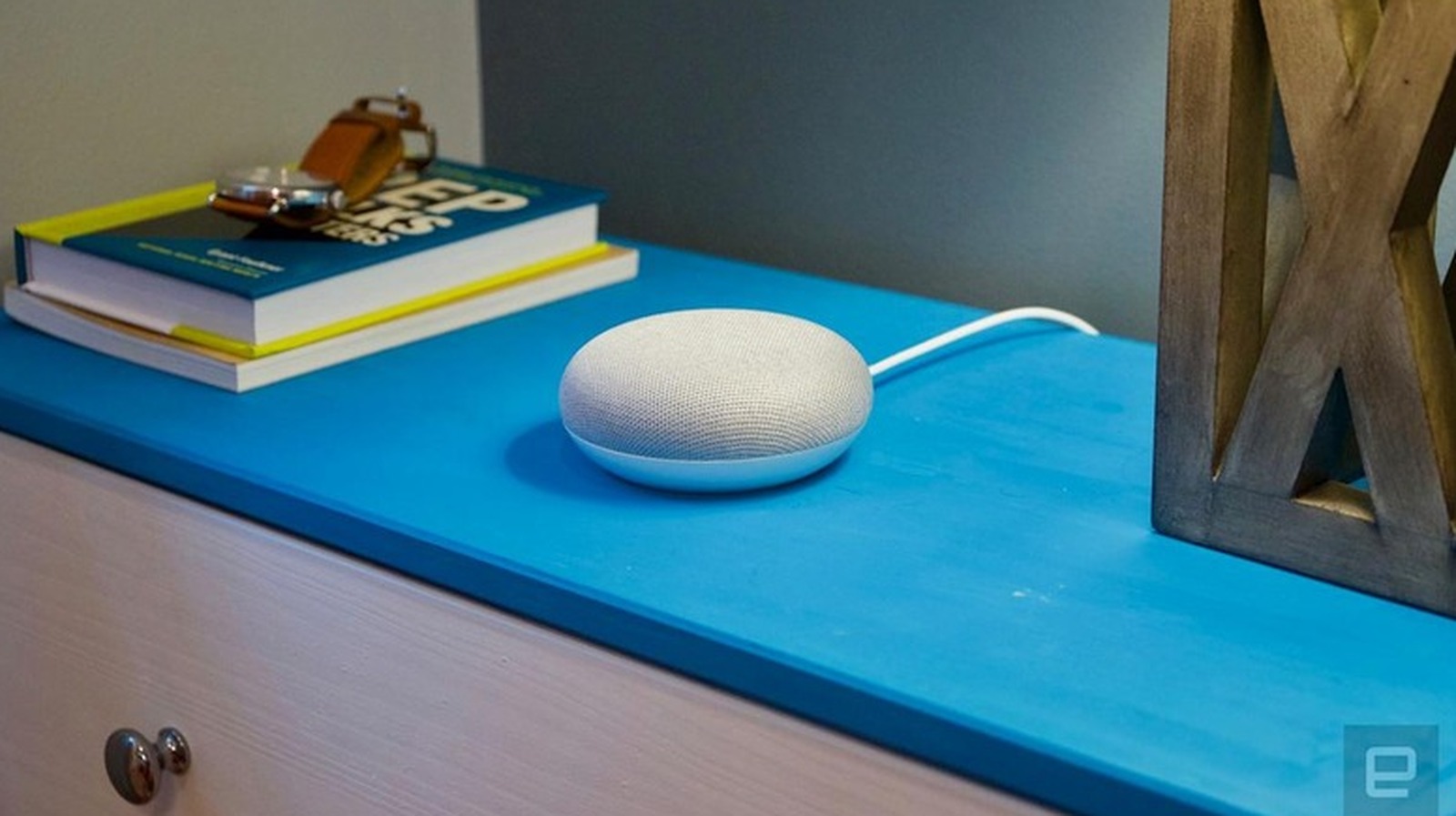
It takes seconds to reset your Google speakers and display models.
The Google Home Mini has been around for almost nine years at this point, and the company has even discontinued it, but the devices are still in working order. Still, there are situations that call for a factory reset. Whether the speaker stops responding to commands, there are Wi-Fi connectivity troubles, you've tried to switch the Google account or you're ready to send it off to another owner, you need to know how to reset it.
The good news is that resetting your device doesn't require technical expertise or special tools. No matter which Google speaker or display you own, the resetting process only takes a few minutes, and that's exactly the case for the original Home Mini. That's great because if you're trying to set it up again, that'll take even more of your time, and none of us have too much of that.
We'll go through the whole process of resetting the original Google Home Mini, touch on how to do the same for the company's other devices, and discuss what comes after the process is complete.
Earlier this year, Google introduced a new smart home speaker, which brought to an end both the Nest Home Mini and the Nest Audio. The company confirmed to Engadget that it was no longer going to be making any new units for these models, but it would continue to support them with regular software updates, security patches and customer care.
One thing to know if you need to run a factory reset on one of these devices is that this process cannot be triggered through voice commands or the Google Home app. You'll have to use the physical controls on the speaker.
If you have the Google Home Mini (1st gen), you need to flip the device over and locate the reset button on the bottom. Just below the power cord, there will be a small circle etched into the base. You have to press and hold the button for about five seconds until the reset process begins, then continue holding for another 10 seconds until you hear a confirmation chime.
If you have the Google Nest Mini (2nd gen), which looks much the same as the original, you have to find the microphone on/off switch on the side of the device and turn it off. This will make the LED lights pulse orange. Then, press and hold the center of the device, where the top lights are located, for about five seconds to start the reset. Hold the press for another 10 seconds until a chime confirms the process is complete.
For display models like the Nest Hub, the reset process requires pressing and holding both volume buttons on the back of the device simultaneously for about 10 seconds. The screen will indicate that the reset is running. Give it a few moments to restart before attempting any setup.
A factory reset wipes your Google Home Mini clean, restoring it to the exact state it was in when you took it out of the box. All your personal data, Wi-Fi credentials and linked Google accounts are permanently removed, and the device is disconnected from every member of your household. You can't undo this action, so make sure you don't need a reboot, which you can do by unplugging the device for a minute to resolve glitches without erasing anything.
If you want to relink your device, you need to open the Google Home app, tap the "+" icon and select Set up device. From there, follow the in-app prompts to reconnect to your Wi-Fi network and link the speaker to your Google account. If your Google Home Mini is not connecting, there are plenty of troubleshooting tips available in Google's support pages.