 Engadget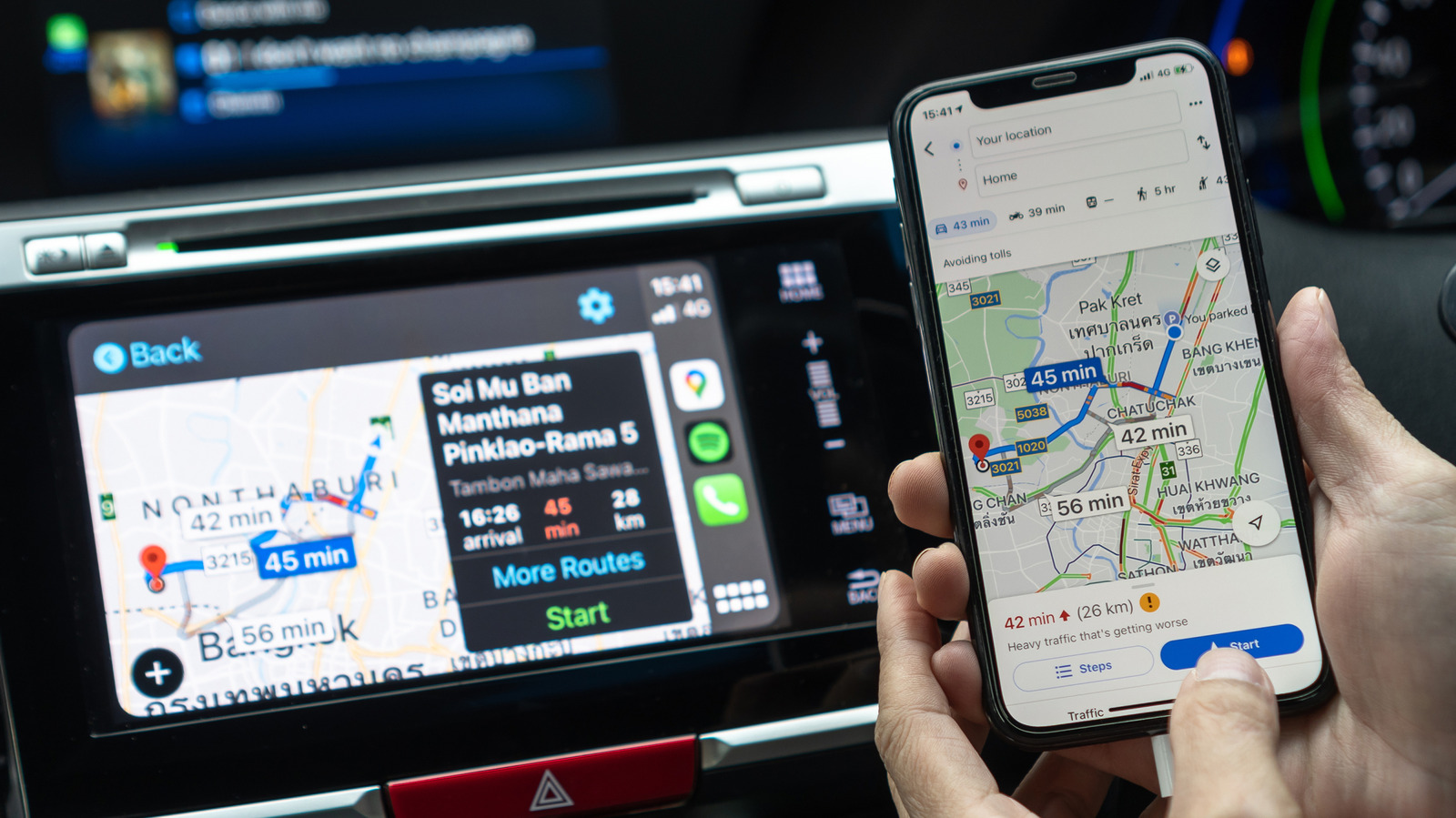
A few tricks provide a Google Maps experience in your car with CarPlay.
Apple Maps has improved a lot since its troubled launch, but many people still prefer Google Maps. The good news is that you can use Google Maps in Apple CarPlay just like any other supported app.
Apple has always been restrictive when it comes to changing the iPhone's default apps. In the EU and Japan, local regulations allow you to choose your favorite navigation app as the default. If you're in one of these regions, you'll find this toggle in the Default Apps menu on your iPhone, located under Settings > Apps.
While it's not particularly smooth, one of the easiest is adding "on Google Maps" to the end of Siri requests in the car to avoid Apple Maps opening by default.
If you're outside the EU and Japan, there are still ways to use Google Maps in CarPlay. One is to place Google Maps on the first page of your CarPlay Home Screen: in your iPhone's Settings, go to General > CarPlay.
If Google Maps isn't showing up on CarPlay at all, this is the first place to look. Of course, you'll need to download Google Maps to your iPhone from the App Store first.
Adding Google Maps to your CarPlay dashboard is another method to reach it faster. Go back to CarPlay's settings on your iPhone, but this time, tap Widgets instead of Apps.
Again in Google Maps on your iPhone, tap your profile picture and select Offline Maps.