 Engadget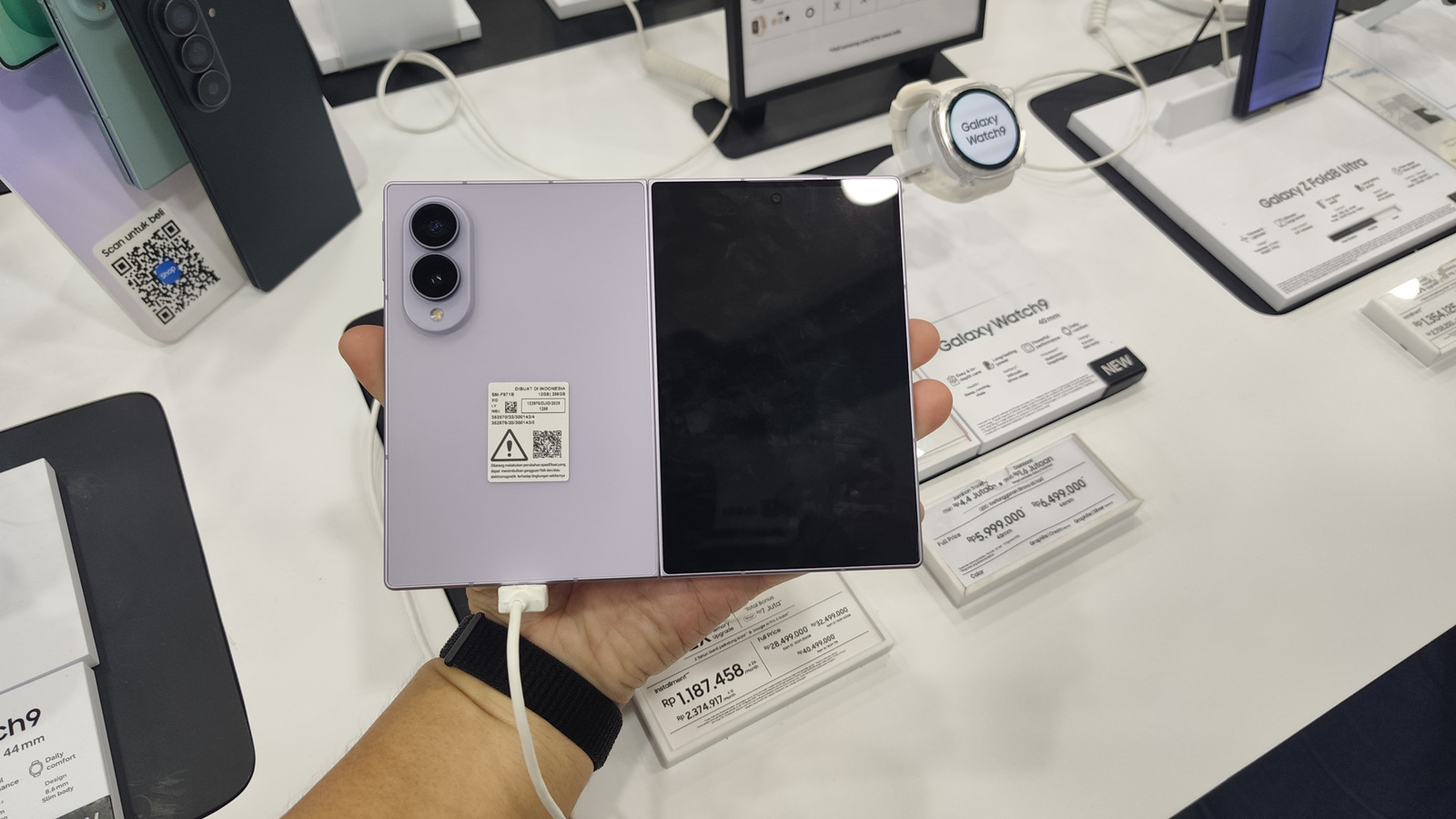
Launching a desktop mode on your Galaxy device is now pretty easy.
Samsung DeX has long been a fan-favorite feature. Since 2017, it has quietly lived in the settings of flagship Samsung devices, always ready to save people in a pinch. If you don't know, Samsung DeX is a tool that allows users to turn their Galaxy device into a full-on desktop. All you need to do is turn DeX on, connect it to an external display (wired or wirelessly) and you're ready to go. You can even connect peripherals like a USB dock, mouse and keyboard, and they will all work.
When DeX was first released, phone displays were way smaller, so it didn't make sense to try running a desktop interface on the phone itself. But that's no longer the case, especially with devices like the Z Fold 8 that sport a big 7.6-inch inner screen.
Thankfully, you can now use all of the features of DeX right on your Z Fold 8 directly. It's thanks to an app called Gadesk, which is currently available on the Play Store, so no websites or sideloading are involved.
As it's not a hack, it doesn't require rooting or other complicated software. Once the app is installed, it takes just a few minutes sorting out the settings before you can start using DeX on your Z Fold 8 alone — no monitor or external display needed.
If you haven't already, grab the app from the Play Store. Before going any further, turn off Auto Blocker by heading to Settings > Security and privacy > toggle off Auto Blocker. Leaving it on can disable steps needed to connect the app. Next, enable wireless debugging on your device through Developer options. To enable Developer options, in Settings, go to About phone > Software information > tap Build number seven times > enter your passcode > confirm. Inside Developer options, turn on Wireless debugging. You need to be connected to Wi-Fi, and you'll be prompted to always allow your chosen network for wireless debugging.
Once that's done, launch the app and select "Connect driver" then choose "First-time pairing." Allow notifications when prompted, and it should take you straight to Developer options. If not, go back into Developer options, then Wireless debugging and tap "Pair device with pairing code." Immediately, you'll see a code on your screen, note it down. Open your notifications, you'll see one titled "Pairing screen detected. Enter the code." Click "Enter pairing code" and write the code your device gave you. Once paired, "DeXprobe" should show up in the Wireless debugging menu, confirming the connection.
Go back to the Gadesk app, and click "Allow Driver", then "Allow.". Next, tap "Enable accessibility" then "AGREE AND OPEN SETTINGS"; you'll be taken to your Z Fold 8's accessibility settings. In there tap Installed apps > find the Gadesk app > toggle on > Allow. Now go back to the app then tap "Start desktop."
Behind all the settings and permissions, the app works by tricking your Z Fold 8 into thinking it's connected to an external display using the wireless debugging feature. Then the app intercepts the desk screen output and uses the accessibility permission you granted it to overlay that output onto your Z Fold 8's inner screen.
Now that DeX is successfully running on your Z Fold 8's inner screen, there are a bunch of settings you can tweak inside the Gadesk app. One of the first settings you should change is the orientation. By default, Gadesk runs DeX in landscape, but portrait suits the Z Fold 8's aspect ratio better, especially for multitasking.
If, for some reason, you prefer using a virtual trackpad on your newfound Z Fold 8's DeX mode, you can do that too. Plus the trackpad comes with useful functions including copy, paste, zoom in and out and you can change the opacity of the trackpad. Another setting you should take a look at is Gesture action. You have three-finger tap and two-finger tap available and by default they set to Home and Back respectively. But with a few clicks you can customize both gestures to your preference or even set them to none if you don't have any use for it.
It must be noted that the Gadesk app is not free. On the free version, each DeX session is limited to 15 minutes and you'll have to deal with ads. Upgrading removes the time limit and gets rid of ads, but it's a one-time fee of $20. If you haven't had enough time to test before taking the plunge, you can extend your DeX sessions by 10 minutes each time by surrendering yourself to promotions.
While Gadesk is suited to the dimensions of the Z Fold 8, the app supports other DeX-capable Galaxy phones (as long as they run One UI 8 or later) and Google Pixel devices via the built-in desktop Android mode.